

Objects is for more advanced data entry. Use it when one item has several related parts and simple text fields are not enough. A common example is product information, where one object may need a title, description, image, details, and optional offers.

Create one object entry

Each object starts as one entry. The designer can build one object step by step and fill all the related information in one place.

1. Title

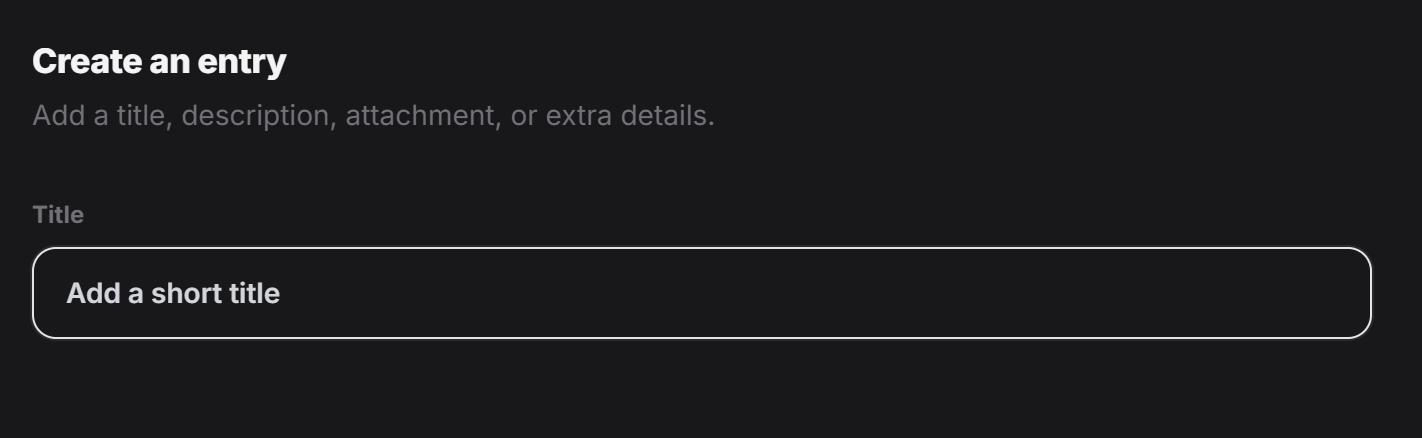
The first part is usually the title.
Screenshot 2026 06 30 070817
This is where the designer adds the main name of the item, product, or object. For example, this can be the name of a product, a shelf item, a menu item, or a highlighted object inside the experience.

2. Description with image

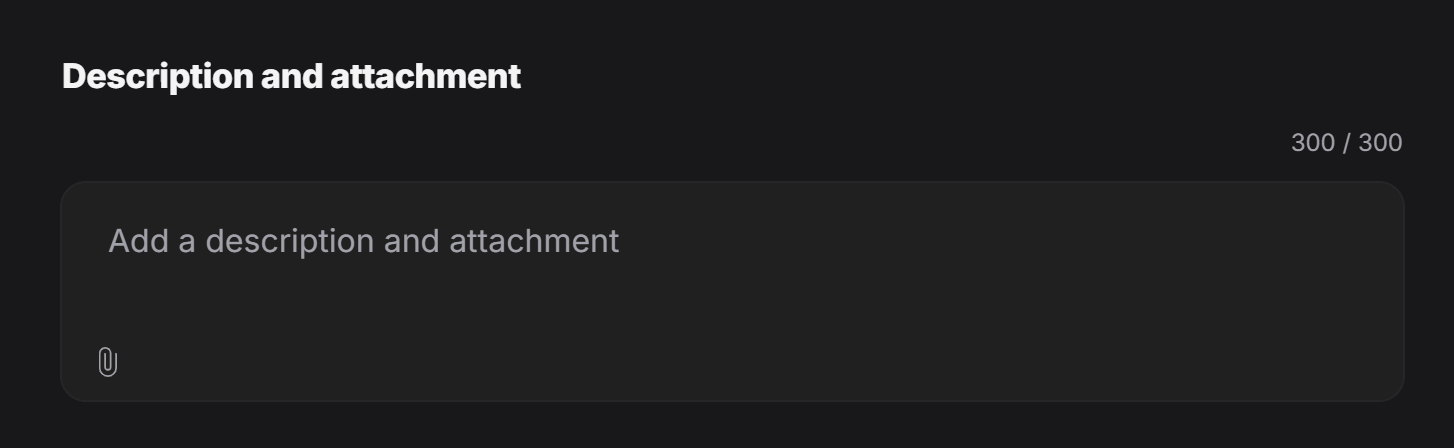
An object can also include a description together with an attachment or image.
Screenshot 2026 06 30 070942
This is useful when the designer wants to explain the item and also show what it looks like.

3. Details

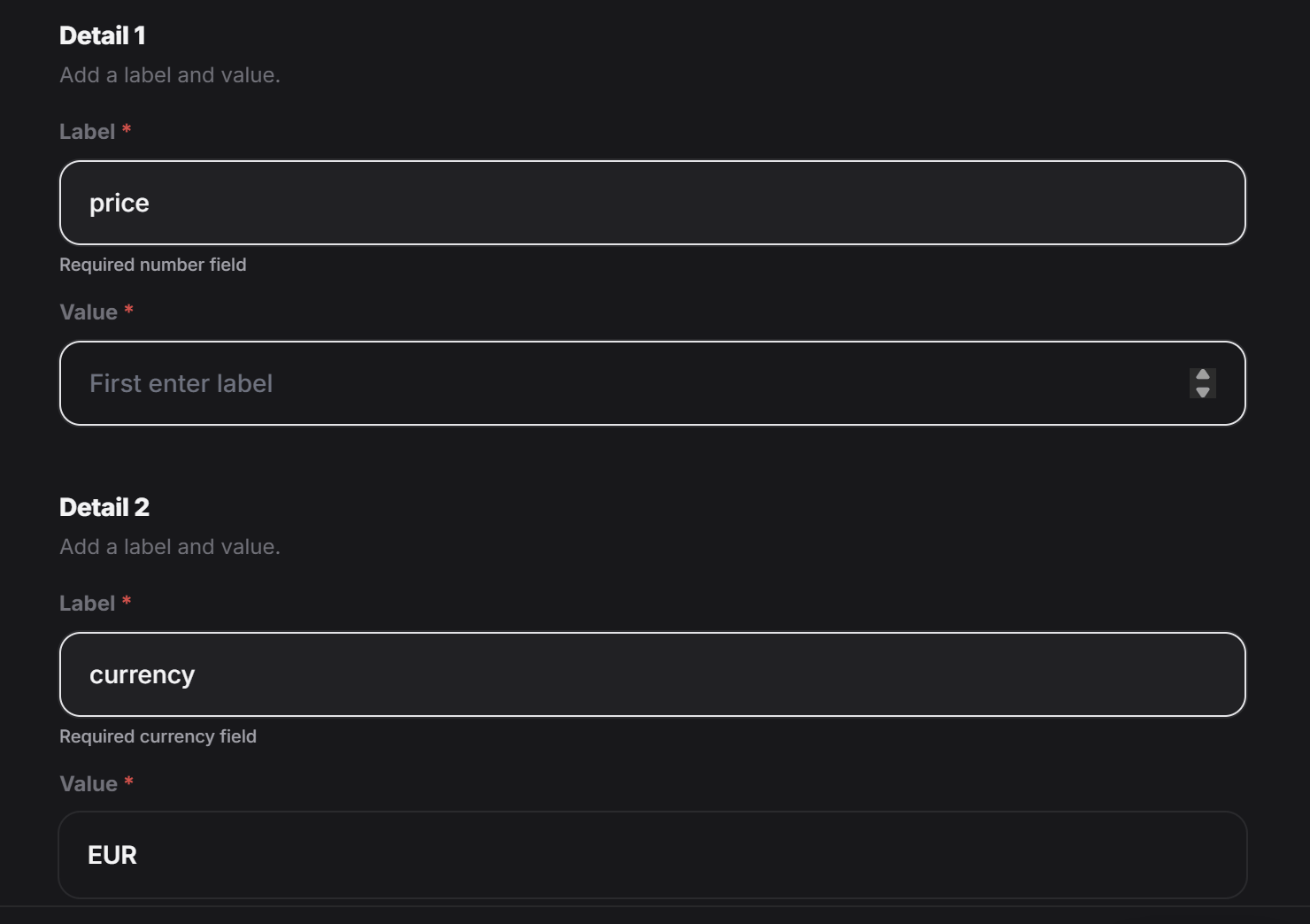
Each object can have its own details.
Screenshot 2026 06 30 071039
This section is for structured details such as:
  • Color
  • Price
  • Size
  • Availability
  • Dimensions
  • SKU or code
  • Material
  • Any other extra specification
So if one product has its own set of facts, all of those can live inside that object.

4. Offers

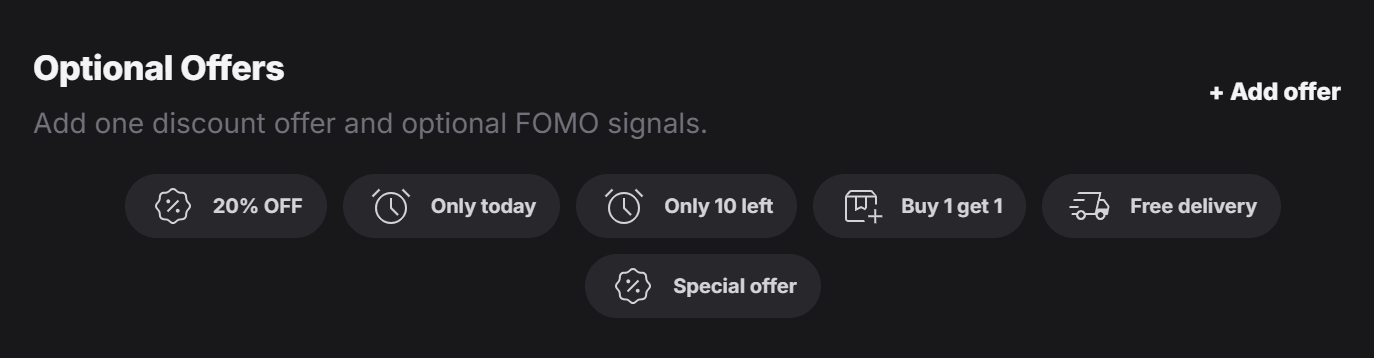
There is also a section for optional offers.
Screenshot 2026 06 30 071326
This lets the designer attach offer-related content to the object, such as:
  • Discounts
  • Buy one get one
  • Free delivery
  • Limited-time promotions
  • FOMO-style promotional signals

One object or many objects

Depending on the experience type, an object field can be single or repeatable. If it is repeatable, the designer can add more than one item.

Screenshot 2026 06 30 071456
When the designer clicks Add item, a new object entry is created. This is useful when the experience needs many products, many featured items, or several structured entries in the same section.

New entry and Saved tabs

The form can also show two tabs:
  • New entry
  • Saved
Screenshot 2026 06 30 071628
The designer uses New entry to create a fresh object. Then they can go to Saved to see the list of items that already exist.

Review and update saved objects

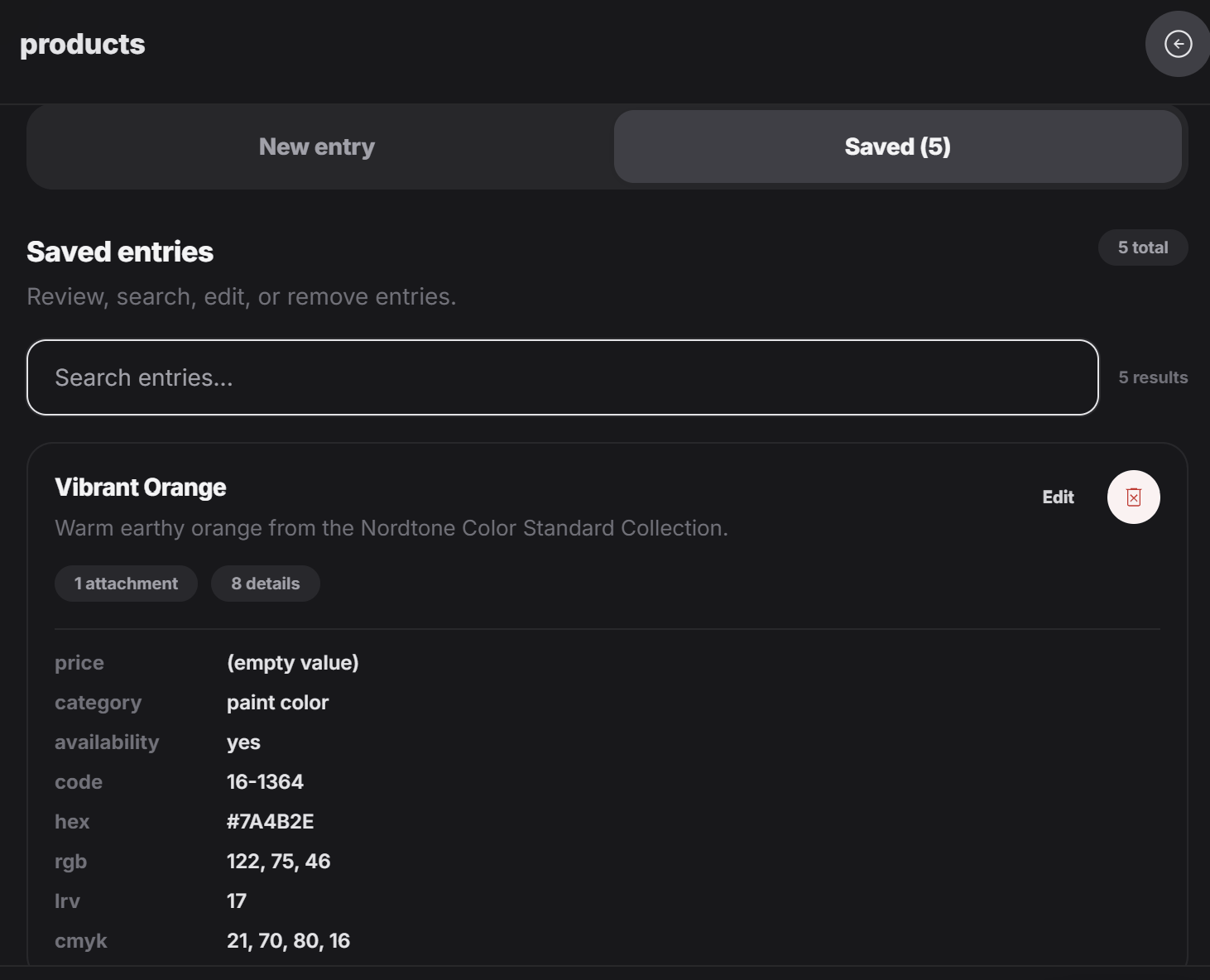
Inside the Saved tab, the designer can review all existing items and click one to update it.
Screenshot 2026 06 30 071837
This makes it easy to:
  • Search existing entries
  • Open one object again
  • Update its content
  • Review its details
  • Remove it if it is no longer needed
Think of Objects as the form you use when one item has several connected layers of information. It is much more powerful than a simple text field, because each object can carry its own title, media, details, and offers.
