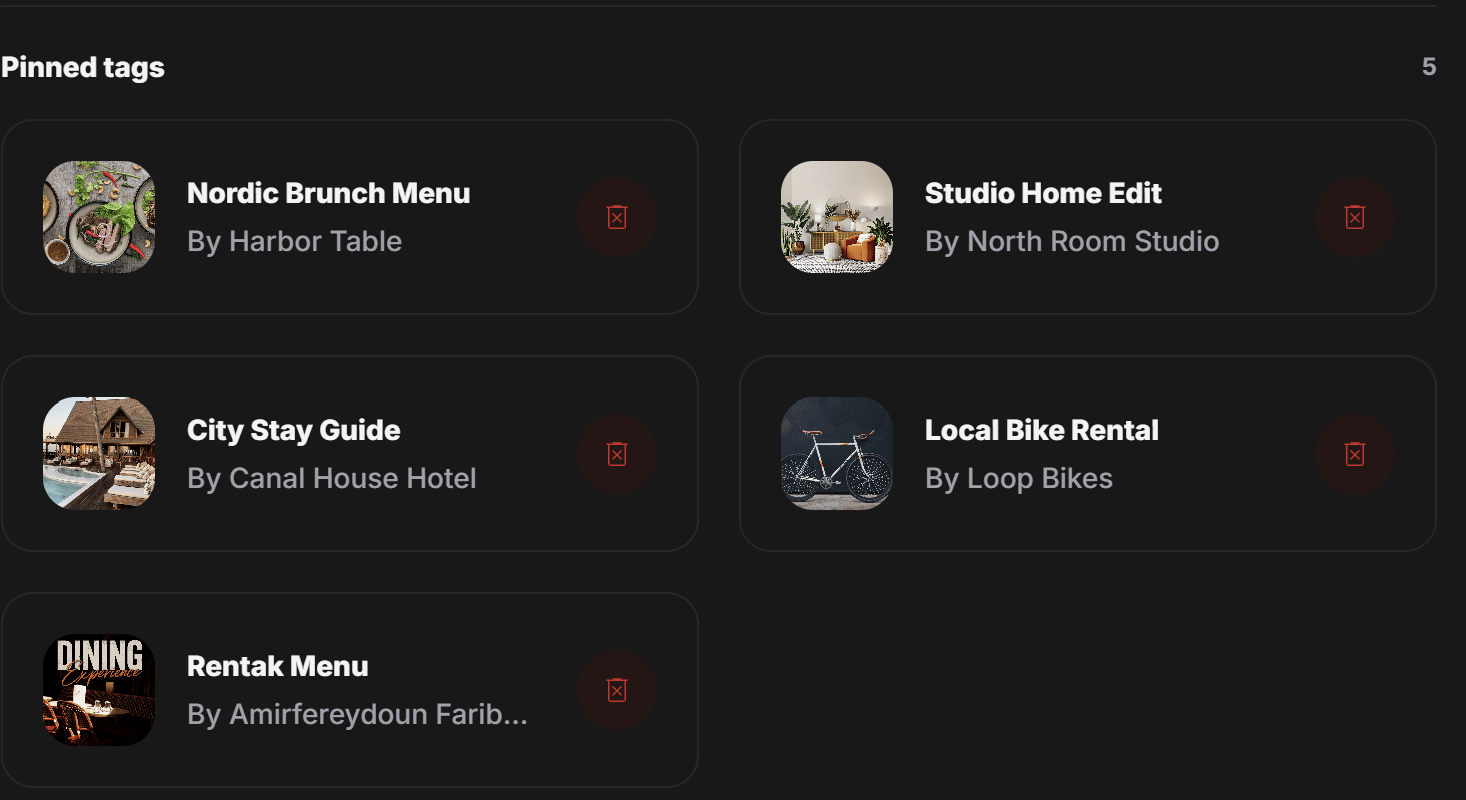

- a showcase page that includes several related product tags
- a campaign that groups multiple experiences in one place
- a shopping or styling flow that should surface more than one tag
- a featured section where approved tags are gathered together
Two simple ways to add tags
The designer can add tags in two easy ways:- from My tags
- from Pin requests
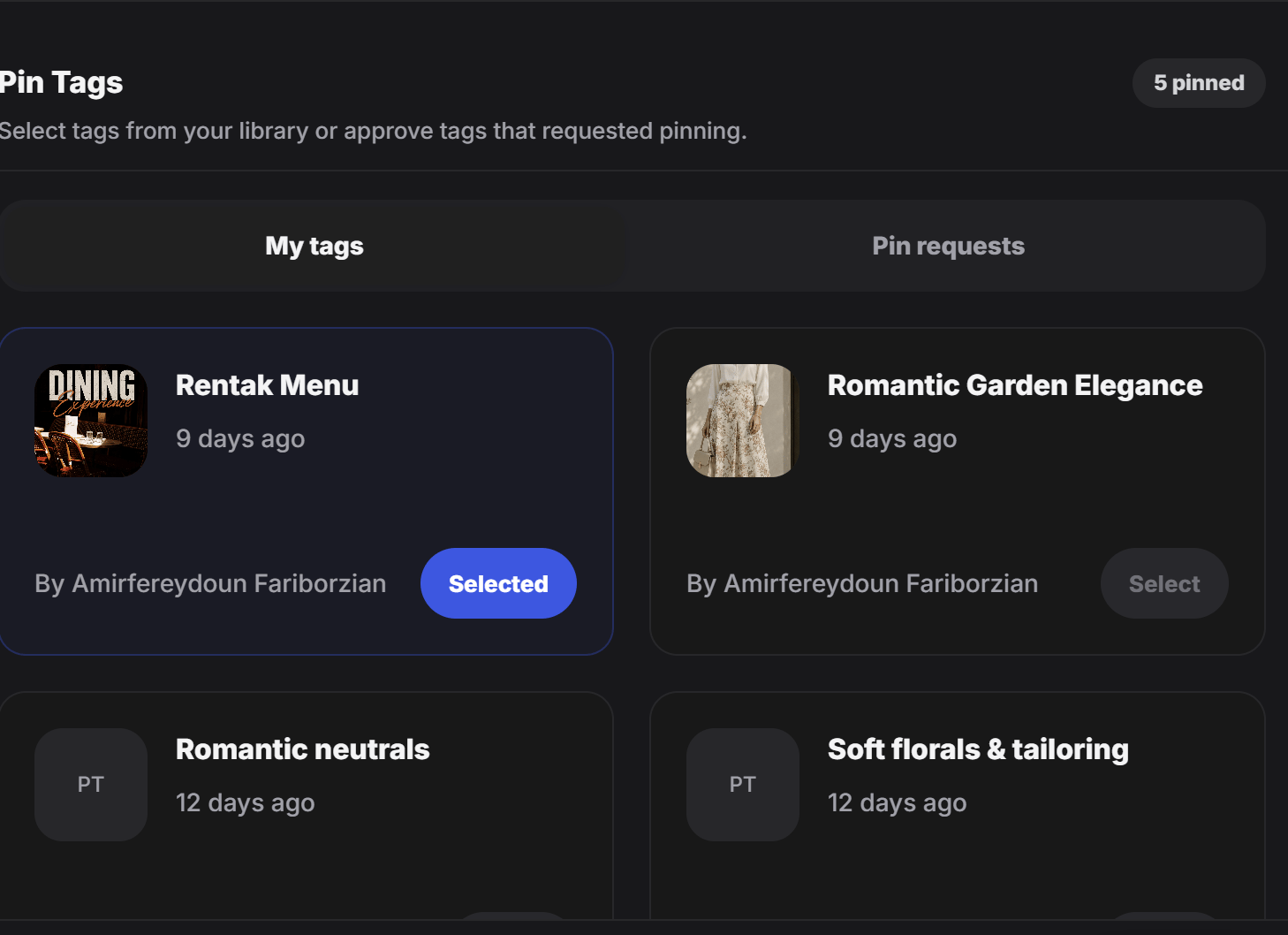
My tags
In the My tags tab, the designer can browse tags that already belong to the tag owner. This is the fastest option when the content is already in the owner’s library and just needs to be added into the container. For example, the designer may want to:- add several product tags into one shopping experience
- combine a menu tag with a booking tag
- group multiple room, outfit, or style tags in one collection
- reuse tags that were already created earlier
- Open My tags
- Find the tag you want
- Click Select
- Add it into the container
Pin requests
In the Pin requests tab, the designer can review tags that asked to be pinned. This is useful when other people or other tag owners want their tags to appear inside this experience. Instead of rebuilding that content manually, the designer can approve and include it directly from the request list. Typical examples:- a partner brand wants its tag to appear in a shared experience
- a seller wants one of their products included in a mapped scene
- another creator wants to connect their tag into the container flow