> ## Documentation Index
> Fetch the complete documentation index at: https://docs.peektag.com/llms.txt
> Use this file to discover all available pages before exploring further.
# SEO Settings
> Configure titles, descriptions, metadata, and search-facing information for an experience.
 SEO Settings help people find the experience when they search, browse, or look for nearby tags.
There are two important parts here: the search description and Geo Search.
## Search & Discovery text
The first box answers a simple question: **what is this tag about?**
Write a clear description of the experience, product, service, place, outfit, menu, or offer. PeekTag uses this text to understand what the tag is about and make it easier to find in search.
If the tag was created by AI, this section may already be filled in automatically. The designer can still review it and update it if the text is not accurate enough.
SEO Settings help people find the experience when they search, browse, or look for nearby tags.
There are two important parts here: the search description and Geo Search.
## Search & Discovery text
The first box answers a simple question: **what is this tag about?**
Write a clear description of the experience, product, service, place, outfit, menu, or offer. PeekTag uses this text to understand what the tag is about and make it easier to find in search.
If the tag was created by AI, this section may already be filled in automatically. The designer can still review it and update it if the text is not accurate enough.
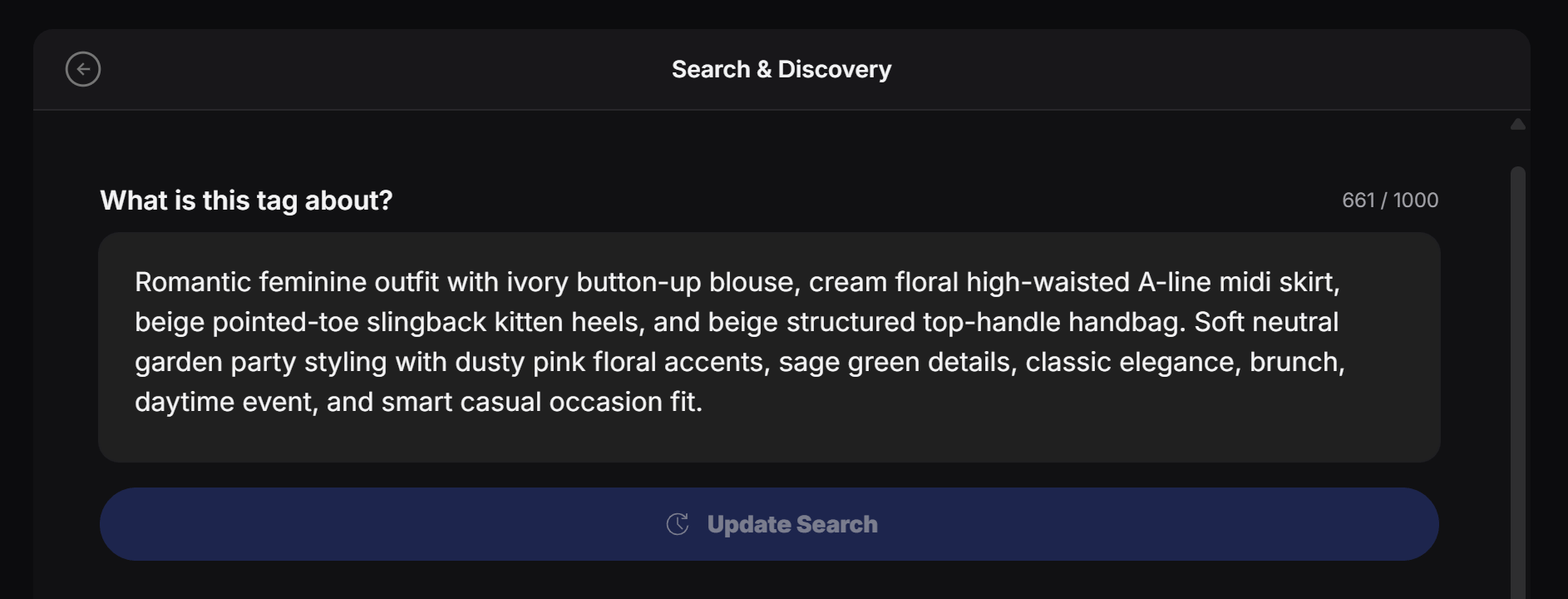 **Embedding search, in simple words:** PeekTag turns this text into a search-friendly meaning. So the user does not need to search the exact same words. If the tag is about a romantic garden party outfit, it can still be found by searches like “soft brunch outfit”, “feminine midi skirt look”, or “elegant daytime outfit”.
A good search text should mention the most important details:
* What the tag is about
* Who it is useful for
* Important products, services, styles, or topics
* The mood, occasion, or use case
* Words people might naturally search for
Keep it clear and natural. Do not fill this box with random keywords. Write it like you are explaining the tag to a person.
## Geo Search
Geo Search makes the tag discoverable on the map for people nearby.
Use it when the experience is connected to a real place, local service area, event, store, restaurant, showroom, hotel, venue, or neighborhood.
First, turn on **Show this tag on the map**.
**Embedding search, in simple words:** PeekTag turns this text into a search-friendly meaning. So the user does not need to search the exact same words. If the tag is about a romantic garden party outfit, it can still be found by searches like “soft brunch outfit”, “feminine midi skirt look”, or “elegant daytime outfit”.
A good search text should mention the most important details:
* What the tag is about
* Who it is useful for
* Important products, services, styles, or topics
* The mood, occasion, or use case
* Words people might naturally search for
Keep it clear and natural. Do not fill this box with random keywords. Write it like you are explaining the tag to a person.
## Geo Search
Geo Search makes the tag discoverable on the map for people nearby.
Use it when the experience is connected to a real place, local service area, event, store, restaurant, showroom, hotel, venue, or neighborhood.
First, turn on **Show this tag on the map**.
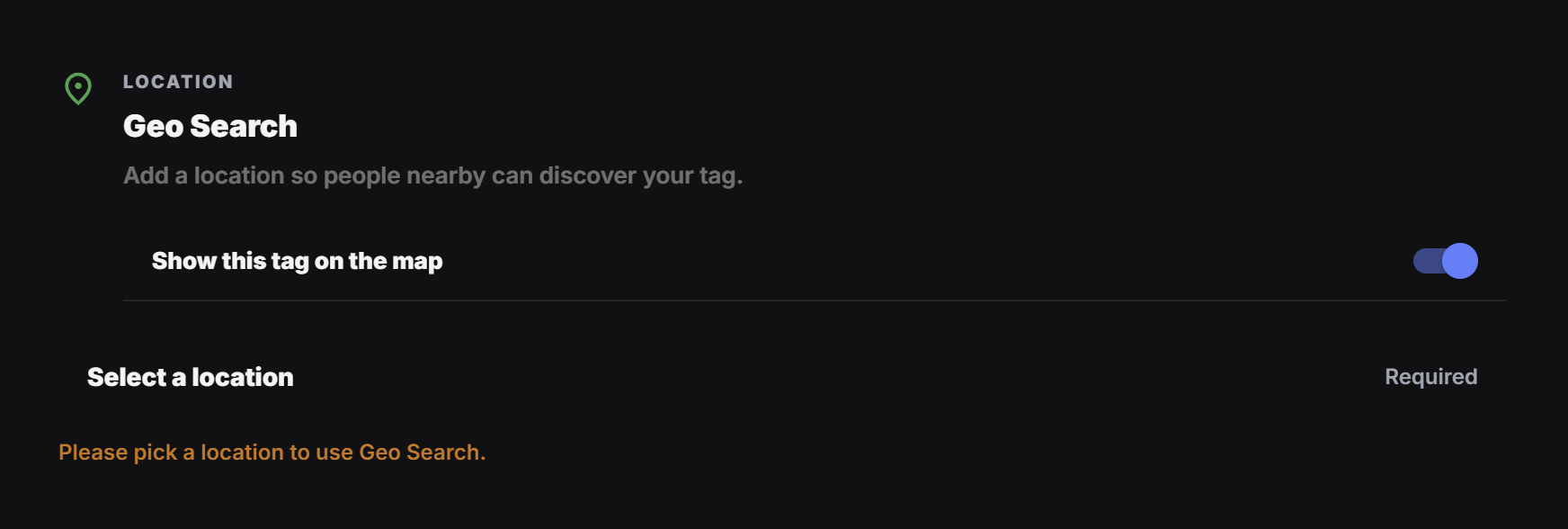 After Geo Search is enabled, the designer needs to choose a location.
## Pick a location and radius
When the location modal opens, search for the place or select the point on the map.
Then use the radius handle at the bottom to choose how far this tag should be discoverable.
After Geo Search is enabled, the designer needs to choose a location.
## Pick a location and radius
When the location modal opens, search for the place or select the point on the map.
Then use the radius handle at the bottom to choose how far this tag should be discoverable.
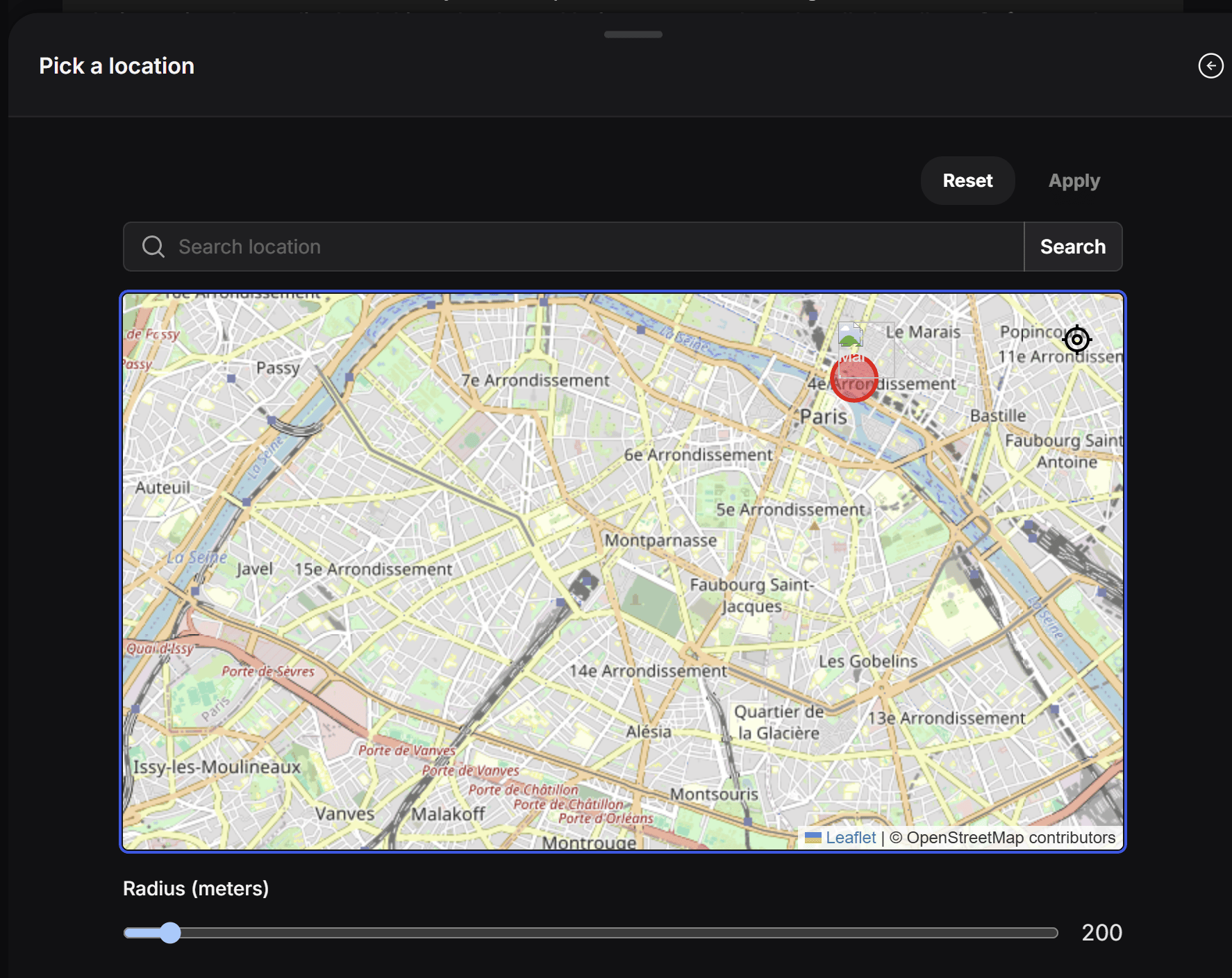 The radius controls the area this tag covers. For example:
* A small radius can work for one shop, restaurant, booth, or venue.
* A larger radius can work for a neighborhood, event area, delivery zone, or local service area.
* If the radius is too wide, people may see the tag even when it is not relevant to their location.
Only enable Geo Search when location matters. If the experience is fully online and does not depend on a place, leave Geo Search off.
The radius controls the area this tag covers. For example:
* A small radius can work for one shop, restaurant, booth, or venue.
* A larger radius can work for a neighborhood, event area, delivery zone, or local service area.
* If the radius is too wide, people may see the tag even when it is not relevant to their location.
Only enable Geo Search when location matters. If the experience is fully online and does not depend on a place, leave Geo Search off.