> ## Documentation Index
> Fetch the complete documentation index at: https://docs.peektag.com/llms.txt
> Use this file to discover all available pages before exploring further.
# Pin Settings
> Pin settings help you decide who can ask to appear on your tag, how those requests are filtered, and how approvals are handled.
If you want a simple setup, start with the plan, choose the tag type, then decide whether review should be manual or AI-assisted.
## Pin Plan
The **Pin Plan** controls whether your tag accepts pin requests and what kind of access model you want to use.
### No plan
Use **No plan** when you do not want this tag to accept any pin requests.
In this mode, the pin system is basically off for this tag. Other tag owners will not be able to use it as a placement target.
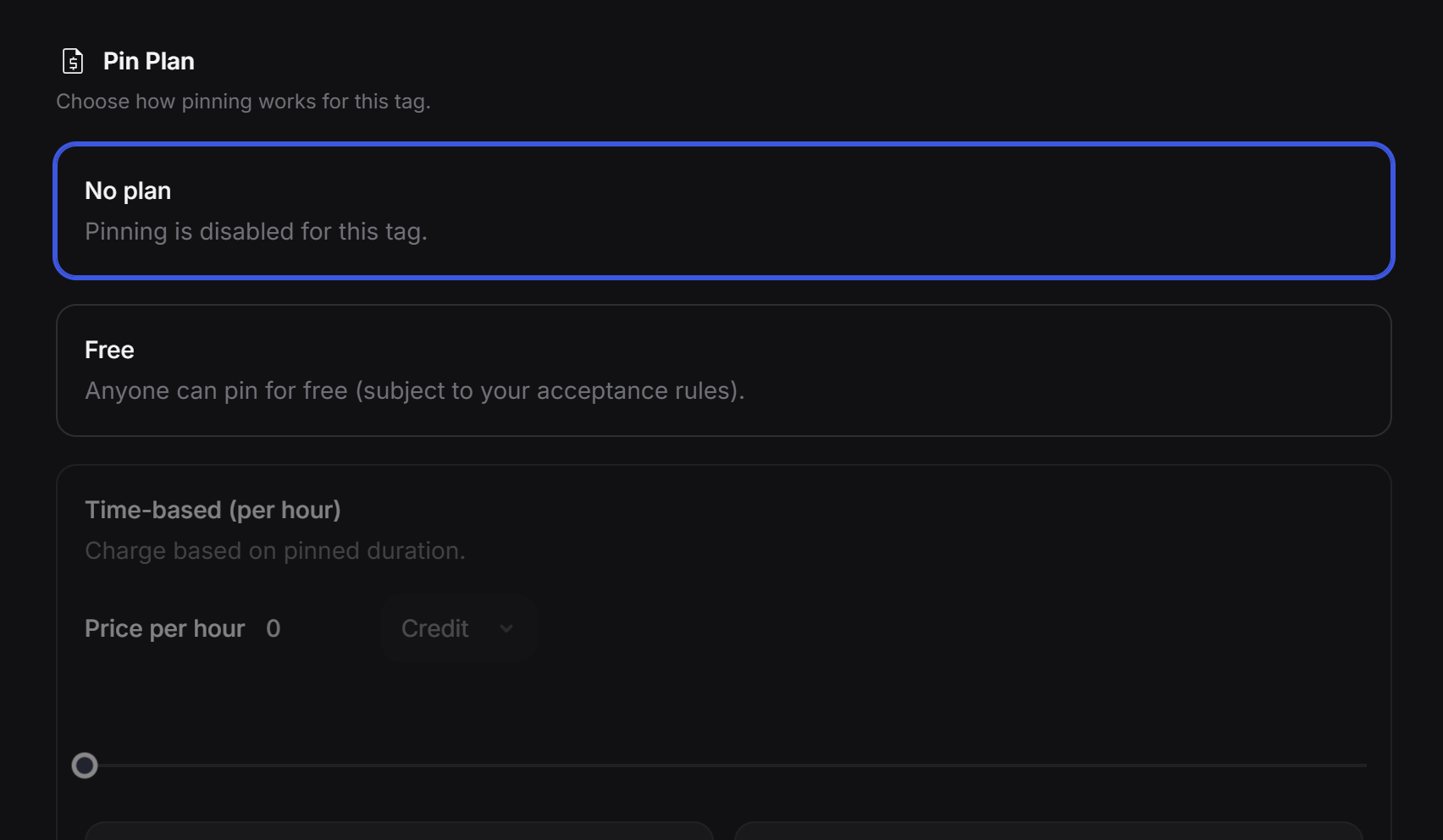 ### Free
Use **Free** when you want other tags to be able to request placement on this tag without paying.
This is a good option when you want to grow visibility, build partnerships, or curate a useful group of related tags around your experience. Requests still follow your review and moderation rules.
### Early access paid mode
The third option is an **early access** mode for paid pinning.
In this setup, the tag owner can allow other tags to appear in exchange for **AI credits** now, and later this can also support direct paid access as the system expands.
This option is useful when a tag has premium visibility and the owner wants more control over how that placement is offered.
## Tag Type
### Free
Use **Free** when you want other tags to be able to request placement on this tag without paying.
This is a good option when you want to grow visibility, build partnerships, or curate a useful group of related tags around your experience. Requests still follow your review and moderation rules.
### Early access paid mode
The third option is an **early access** mode for paid pinning.
In this setup, the tag owner can allow other tags to appear in exchange for **AI credits** now, and later this can also support direct paid access as the system expands.
This option is useful when a tag has premium visibility and the owner wants more control over how that placement is offered.
## Tag Type
 **Tag Type** is mainly for categorization.
It tells other people what kind of surface or placement this tag belongs to. For example, a tag might be connected to a **billboard**, a **product**, a **storefront window**, a **menu**, or another kind of placement.
This helps designers and tag owners filter opportunities faster and understand what kind of visibility they are applying for before they send a request.
In short: it makes discovery cleaner, filtering easier, and pin requests more relevant.
## Moderation
**Tag Type** is mainly for categorization.
It tells other people what kind of surface or placement this tag belongs to. For example, a tag might be connected to a **billboard**, a **product**, a **storefront window**, a **menu**, or another kind of placement.
This helps designers and tag owners filter opportunities faster and understand what kind of visibility they are applying for before they send a request.
In short: it makes discovery cleaner, filtering easier, and pin requests more relevant.
## Moderation
 **Moderation** helps protect your tag from unrelated or low-quality pin requests.
When moderation is enabled, the system can use AI to check whether an incoming request matches the kind of content you want on your tag. Relevant requests can be highlighted for you, while unrelated ones can be flagged before they go live.
This is especially useful if you want to keep a tag focused on a specific topic, style, location, or audience.
There is also a built-in safety layer that helps block clearly abusive, offensive, or inappropriate content by default.
## Geographic Limit
**Moderation** helps protect your tag from unrelated or low-quality pin requests.
When moderation is enabled, the system can use AI to check whether an incoming request matches the kind of content you want on your tag. Relevant requests can be highlighted for you, while unrelated ones can be flagged before they go live.
This is especially useful if you want to keep a tag focused on a specific topic, style, location, or audience.
There is also a built-in safety layer that helps block clearly abusive, offensive, or inappropriate content by default.
## Geographic Limit
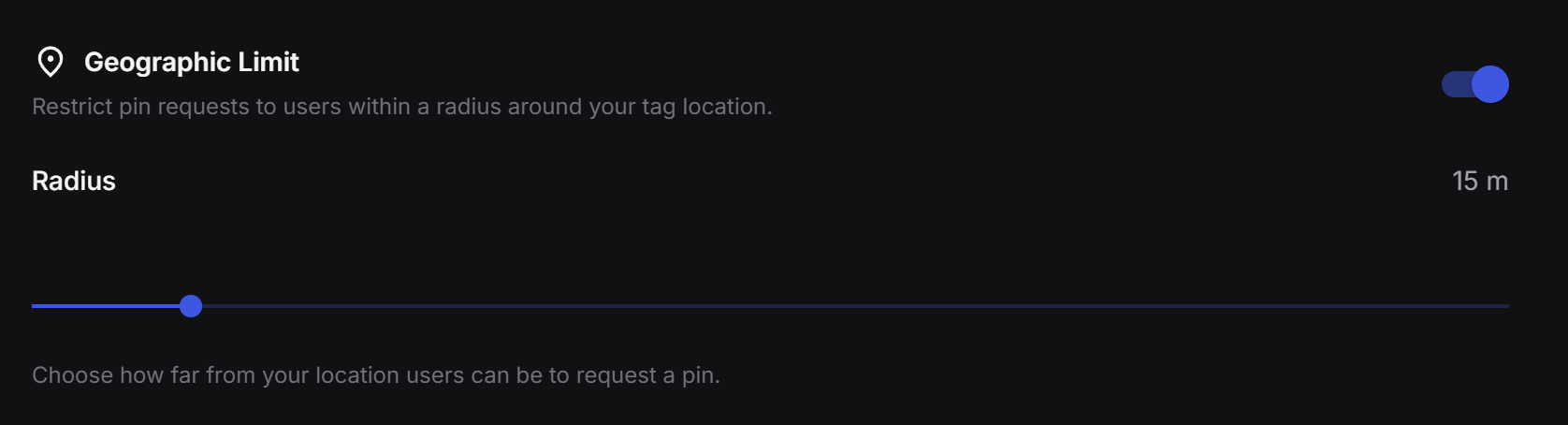 Use **Geographic Limit** when you only want nearby tags to request placement.
This is helpful for local discovery use cases like retail areas, nearby offers, venue-based campaigns, or street-level visibility.
For example, if your tag represents a physical place, you may want to only allow related tags from within **100 meters** or another local radius.
You choose the distance, and the system uses that radius to restrict who can apply.
## Verification
**Verification** decides how pin requests get approved.
### Manual review
If you choose **Manual (Host)**, the tag owner reviews each request one by one and decides whether to accept or reject it.
This is the best choice when you want full control.
### AI review
Use **Geographic Limit** when you only want nearby tags to request placement.
This is helpful for local discovery use cases like retail areas, nearby offers, venue-based campaigns, or street-level visibility.
For example, if your tag represents a physical place, you may want to only allow related tags from within **100 meters** or another local radius.
You choose the distance, and the system uses that radius to restrict who can apply.
## Verification
**Verification** decides how pin requests get approved.
### Manual review
If you choose **Manual (Host)**, the tag owner reviews each request one by one and decides whether to accept or reject it.
This is the best choice when you want full control.
### AI review
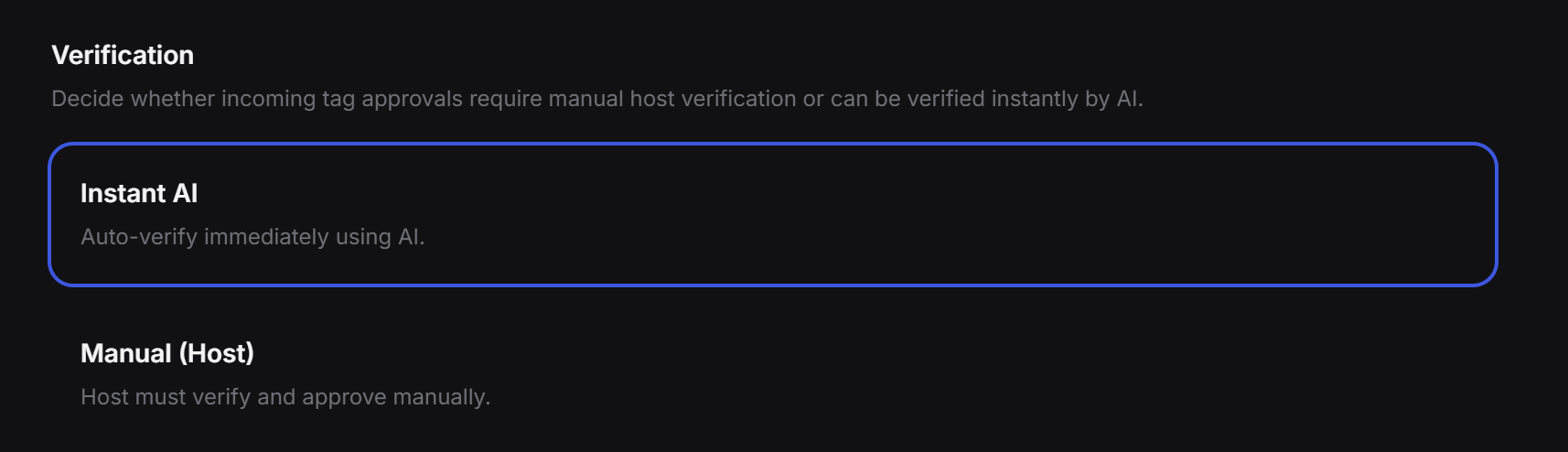 If you choose **Instant AI**, the system can review requests automatically by comparing the content of the source tag and the target tag.
This can save time when you receive many requests or want a faster workflow.
Important: even if AI makes the first decision, the owner can still come back later, review the result, and make a manual change if needed.
## Acceptance Keywords
If you choose **Instant AI**, the system can review requests automatically by comparing the content of the source tag and the target tag.
This can save time when you receive many requests or want a faster workflow.
Important: even if AI makes the first decision, the owner can still come back later, review the result, and make a manual change if needed.
## Acceptance Keywords
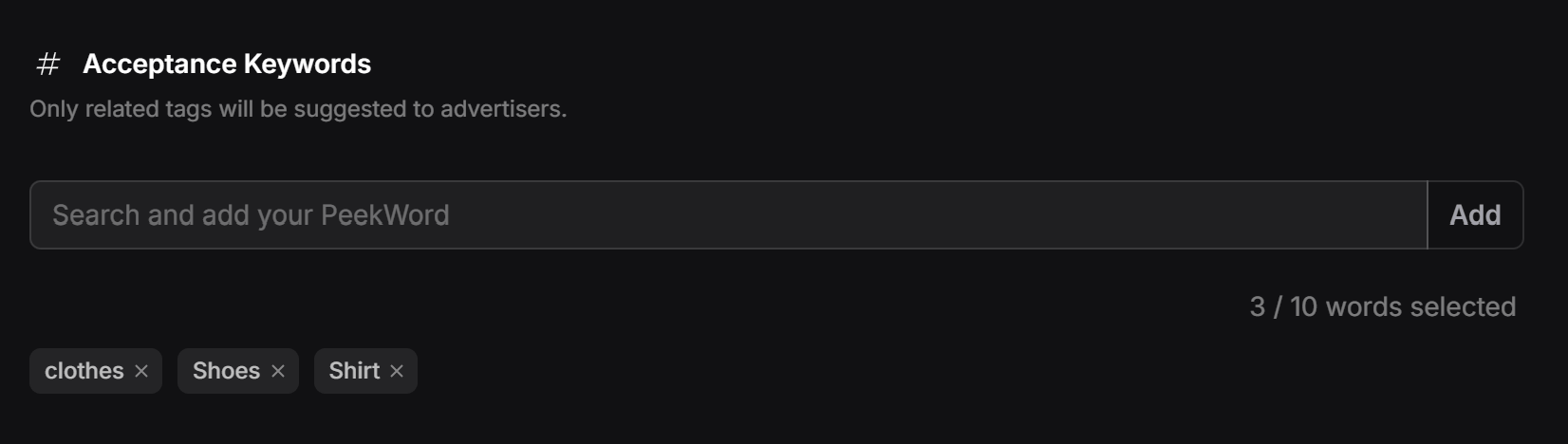 **Acceptance Keywords** let you define the kinds of tags you want to receive.
You can add words that describe the themes, products, styles, or categories that are welcome on this tag. The system uses those keywords to improve matching and guide approvals.
For example, if your tag is about fashion accessories, you might add words like `bags`, `shoes`, `jewelry`, or `style`. If your tag is tied to a restaurant campaign, you might use words like `dessert`, `drinks`, `menu`, or `reservation`.
This makes the approval process smarter and helps keep incoming pin requests aligned with your actual goal.
## Suggested setup
If you want a practical default setup, this is a good place to start:
1. Set a **Pin Plan**.
2. Choose the right **Tag Type**.
3. Add a few **Acceptance Keywords**.
4. Turn on **Moderation** if you want cleaner matching.
5. Add a **Geographic Limit** if location matters.
6. Choose whether **Verification** should be manual or AI-assisted.
That gives you a setup that is easy to manage without making the workflow feel heavy.
**Acceptance Keywords** let you define the kinds of tags you want to receive.
You can add words that describe the themes, products, styles, or categories that are welcome on this tag. The system uses those keywords to improve matching and guide approvals.
For example, if your tag is about fashion accessories, you might add words like `bags`, `shoes`, `jewelry`, or `style`. If your tag is tied to a restaurant campaign, you might use words like `dessert`, `drinks`, `menu`, or `reservation`.
This makes the approval process smarter and helps keep incoming pin requests aligned with your actual goal.
## Suggested setup
If you want a practical default setup, this is a good place to start:
1. Set a **Pin Plan**.
2. Choose the right **Tag Type**.
3. Add a few **Acceptance Keywords**.
4. Turn on **Moderation** if you want cleaner matching.
5. Add a **Geographic Limit** if location matters.
6. Choose whether **Verification** should be manual or AI-assisted.
That gives you a setup that is easy to manage without making the workflow feel heavy.