> ## Documentation Index
> Fetch the complete documentation index at: https://docs.peektag.com/llms.txt
> Use this file to discover all available pages before exploring further.
# Overview
> Configure the AI agent that guides users inside a live or draft experience.
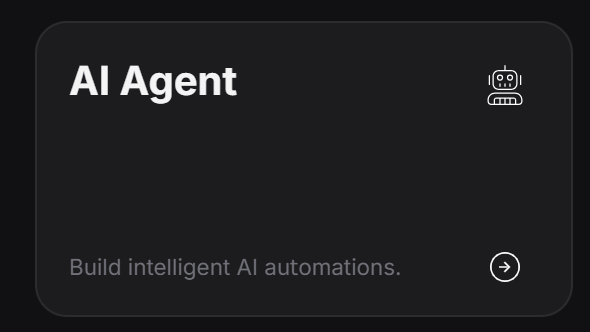 AI Settings is where the designer prepares the AI layer of an experience before launch.
Use this area to decide if the agent is active, whether Try-On is available, who pays for AI usage, what the agent should learn, and how the chat should guide customers.
## Turn the agent on or off
Use **Agent Status** to turn the tag agent on or off.
When the agent is on, customers can chat with the experience and get guided help. When it is off, the experience can still show content and actions, but AI chat is not active.
If the experience supports **Try-On**, you can also turn Try-On on or off from this area. If the template does not include Try-On, PeekTag will show that Try-On is not available for that tag.
AI Settings is where the designer prepares the AI layer of an experience before launch.
Use this area to decide if the agent is active, whether Try-On is available, who pays for AI usage, what the agent should learn, and how the chat should guide customers.
## Turn the agent on or off
Use **Agent Status** to turn the tag agent on or off.
When the agent is on, customers can chat with the experience and get guided help. When it is off, the experience can still show content and actions, but AI chat is not active.
If the experience supports **Try-On**, you can also turn Try-On on or off from this area. If the template does not include Try-On, PeekTag will show that Try-On is not available for that tag.
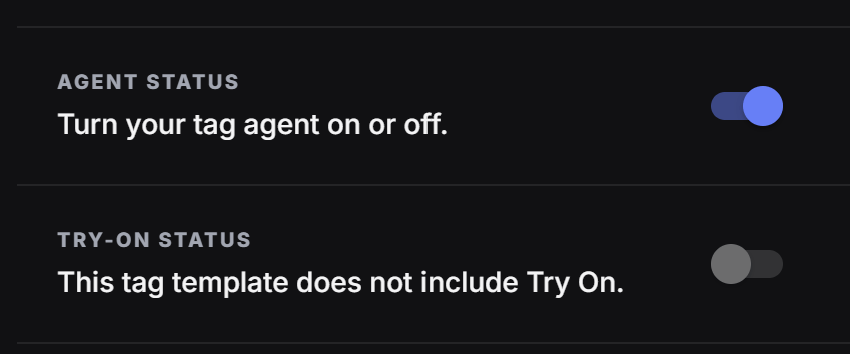 Turn the agent on when the customer needs help choosing, understanding, comparing, booking, ordering, or asking questions. Turn it off when the experience should stay simple and does not need AI chat.
## Choose who pays for AI usage
Agent chats and Try-On can use credits.
By default, the cost may come from the tag owner's credits. If **Users pay** is enabled, the user pays for that feature instead, and the usage does not come out of the tag owner's account.
Turn the agent on when the customer needs help choosing, understanding, comparing, booking, ordering, or asking questions. Turn it off when the experience should stay simple and does not need AI chat.
## Choose who pays for AI usage
Agent chats and Try-On can use credits.
By default, the cost may come from the tag owner's credits. If **Users pay** is enabled, the user pays for that feature instead, and the usage does not come out of the tag owner's account.
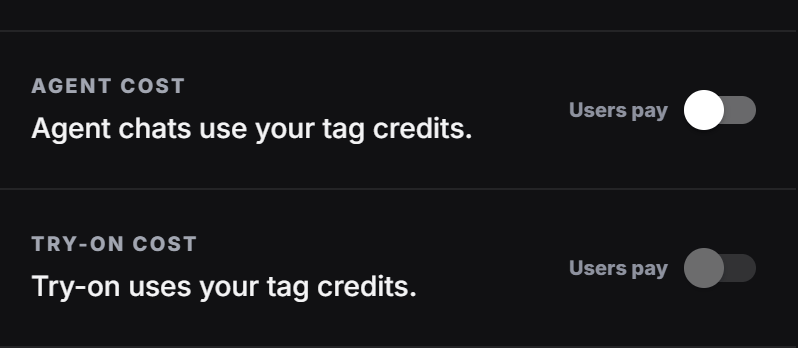 Be clear about this before launch. If **Users pay** is turned on for Agent chats or Try-On, the cost of using that feature is handled by the user, not the tag owner.
## Main AI setup items
After status and cost are clear, the designer usually works through these three setup areas.
* [**Train Agent**](/manage-live-experiences/ai-settings/assistant-instructions): Teach the agent the latest tag data so it can answer based on the newest content.
* [**Knowledge**](/manage-live-experiences/ai-settings/knowledge-sources): Add brand, product, website, file, or text information that helps the agent answer better.
* [**Chat Flow**](/manage-live-experiences/ai-settings/conversation-flow): Control the steps the customer moves through during the conversation.
Use these cards as the main path: first train the agent, then add useful knowledge, then adjust the chat flow if the experience needs a guided conversation.
Be clear about this before launch. If **Users pay** is turned on for Agent chats or Try-On, the cost of using that feature is handled by the user, not the tag owner.
## Main AI setup items
After status and cost are clear, the designer usually works through these three setup areas.
* [**Train Agent**](/manage-live-experiences/ai-settings/assistant-instructions): Teach the agent the latest tag data so it can answer based on the newest content.
* [**Knowledge**](/manage-live-experiences/ai-settings/knowledge-sources): Add brand, product, website, file, or text information that helps the agent answer better.
* [**Chat Flow**](/manage-live-experiences/ai-settings/conversation-flow): Control the steps the customer moves through during the conversation.
Use these cards as the main path: first train the agent, then add useful knowledge, then adjust the chat flow if the experience needs a guided conversation.