> ## Documentation Index
> Fetch the complete documentation index at: https://docs.peektag.com/llms.txt
> Use this file to discover all available pages before exploring further.
# Map
> Add or edit a map-based location field.
The Map form is used when the designer wants to connect a tag to a real location.
This can be a shop, restaurant, salon, venue, pickup point, office, or any physical address related to the experience.
The designer can do this in two ways.
## Option 1: Pick the location on the map
In the first tab, the designer can place the physical address directly on the map.
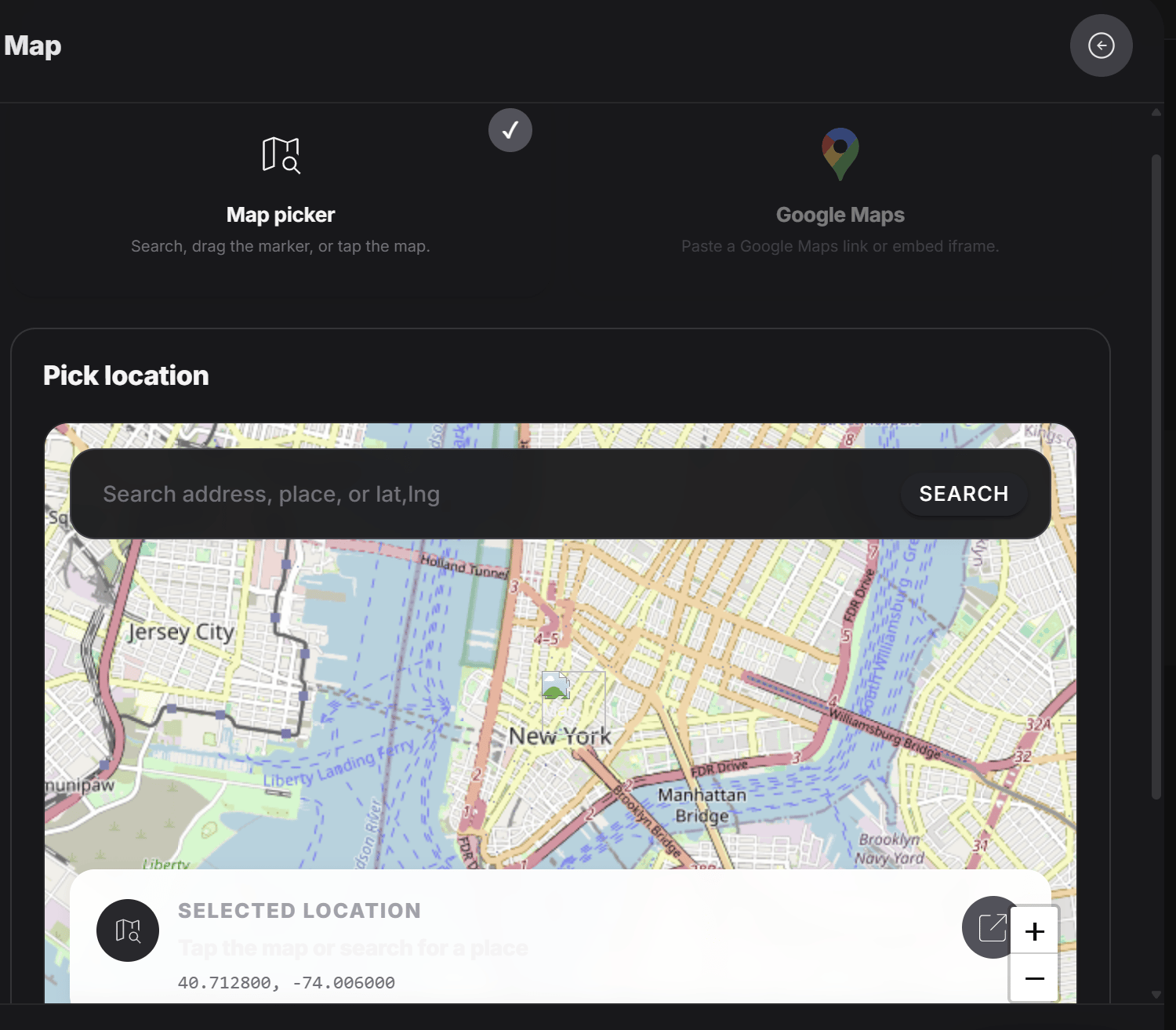 They can:
* Search for an address or place
* Drag the marker
* Tap the map to set the point
This is useful when the designer wants to choose the exact physical position of the tag.
## Option 2: Add Google Maps link
In the second tab, the designer can paste the Google Maps address or embed link for the tag.
They can:
* Search for an address or place
* Drag the marker
* Tap the map to set the point
This is useful when the designer wants to choose the exact physical position of the tag.
## Option 2: Add Google Maps link
In the second tab, the designer can paste the Google Maps address or embed link for the tag.
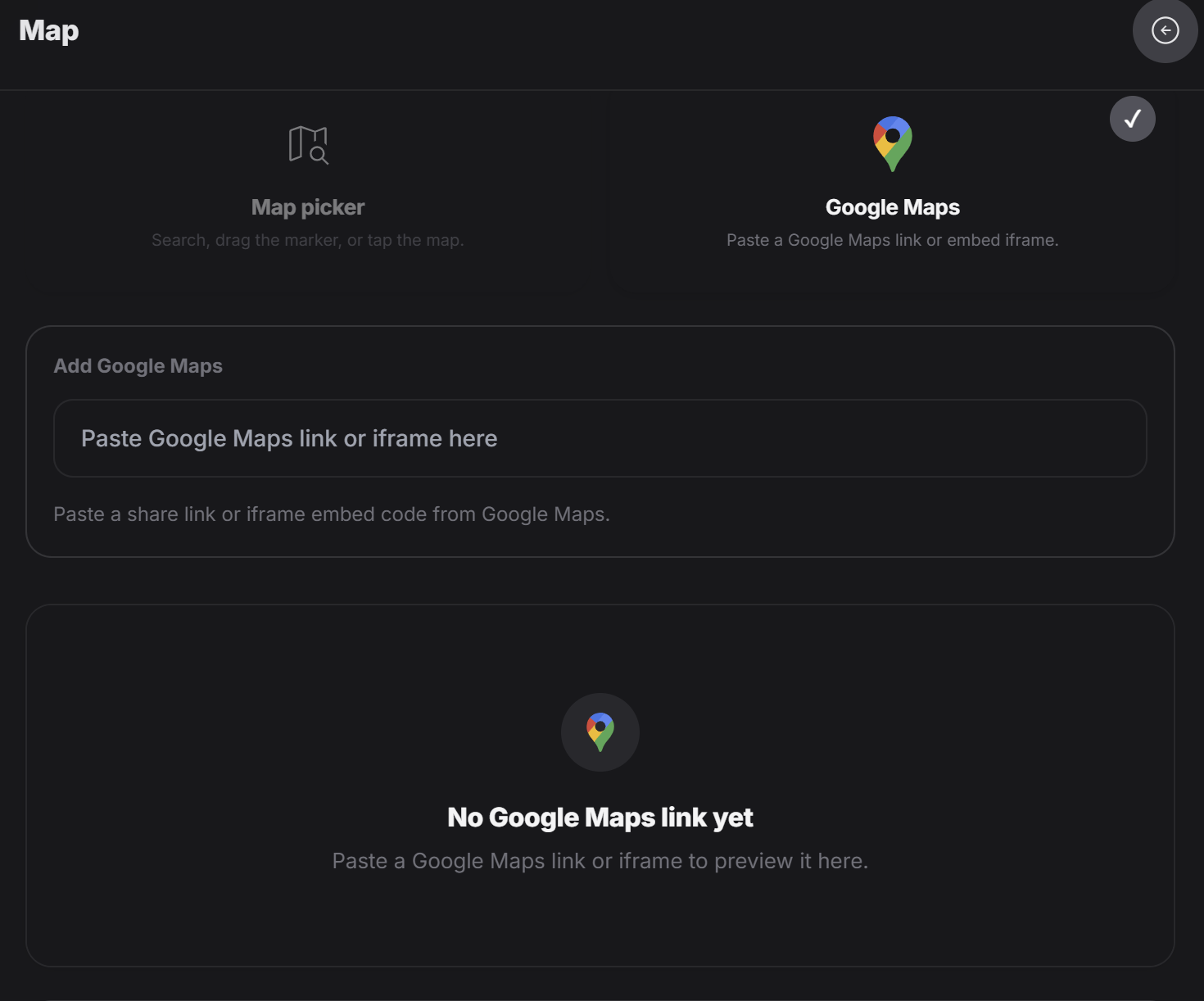 After pasting the Google Maps link, the system shows a preview.
The designer can check the preview and, if it looks correct, confirm and save it.
## Why this is useful
This form helps when the experience should point people to a real place.
For example:
* A restaurant location
* A salon address
* A showroom
* A pickup location
* A business branch
* A venue for an event
Use the map picker when you want to manually choose the exact spot. Use the Google Maps tab when you already have the map link and want to preview it before saving.
After pasting the Google Maps link, the system shows a preview.
The designer can check the preview and, if it looks correct, confirm and save it.
## Why this is useful
This form helps when the experience should point people to a real place.
For example:
* A restaurant location
* A salon address
* A showroom
* A pickup location
* A business branch
* A venue for an event
Use the map picker when you want to manually choose the exact spot. Use the Google Maps tab when you already have the map link and want to preview it before saving.